
Comparing Customer Revenue in ServiceTitan vs Xero🔗
When revenue by customer does not match between ServiceTitan and Xero Accounting, the debate usually stalls at “which one is the source of truth?” The operations team points to what was sold and completed. The finance team points to what was invoiced and posted.
Instead of picking sides, this cookbook shows you how to compare both views of the same customer list and let the differences speak for themselves. You will calculate revenue by customer from each system for the same period, then quickly spot customers where timing, credits, write-offs, or missing postings are driving the delta.
Follow the steps to produce a clean comparison in TitanSigma that both ops and accounting can use in the same conversation.
Comparing Revenue by Customer in 4 Simple Steps🔗
Once ServiceTitan and Xero data are in TitanSigma, you can run the comparison in a few steps.
Step 1: Start a New Query🔗
Open your TitanSigma workspace and create a new query. Choose the AI|GPT section to use the natural language interface.
Pro tip: New to TitanSigma queries? Check out our comprehensive guide to get up to speed.
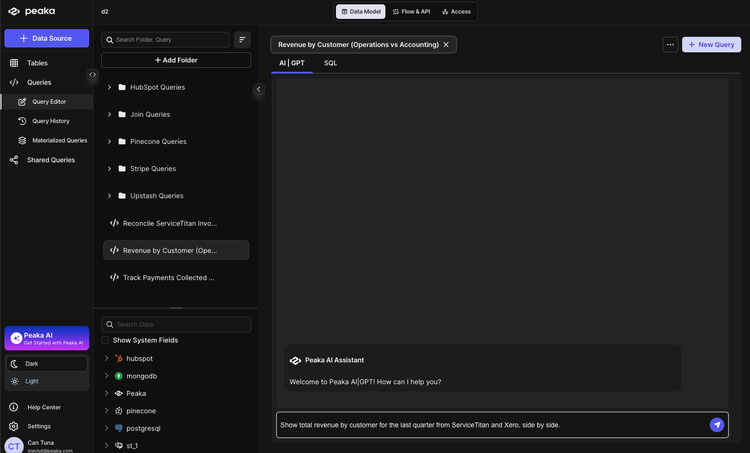
Step 2: Ask in Plain English🔗
Enter your comparison request in natural language. For example:
Show total revenue by customer for the last quarter from ServiceTitan and Xero, side by side.
Step 3: Select Your Data Sources🔗
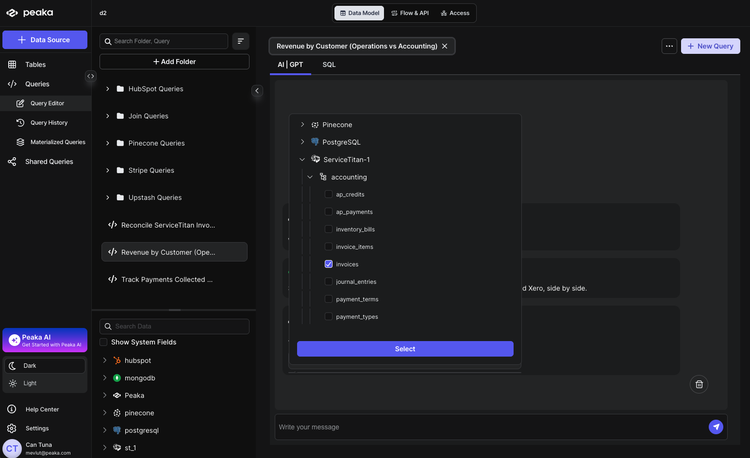
TitanSigma will suggest the relevant tables. For this comparison you'll typically use:
ServiceTitan
- Invoices —
your_service_titan_connection > accounting > invoices - Customers —
your_service_titan_connection > crm > customers
Xero Accounting
- Invoices —
your_xero_connection > accounting > invoices - Contacts —
your_xero_connection > accounting > contacts
The logic: aggregate invoice totals per customer in each system, match Customer.Name to Contact.Name to align rows, then show ServiceTitan and Xero revenue side by side to highlight discrepancies.
Step 4: Execute and Analyze🔗
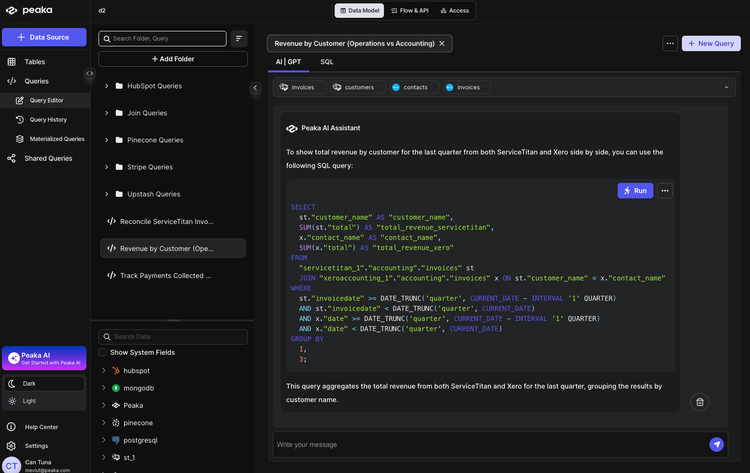
Run the query. TitanSigma generates the SQL and returns a result set showing total revenue by customer from ServiceTitan and Xero where they match or differ.
Use the output to quickly spot:
- Revenue discrepancies — same customer, different totals between operations and accounting.
- Customers in one system only — revenue in ServiceTitan but not in Xero, or the reverse.
- Quarter-over-quarter alignment — whether operational and accounting revenue track over time.
Conclusion: Make revenue differences explainable🔗
If customer revenue differs between ServiceTitan and Xero, do not treat it as a math problem. Treat it as a story problem. Something happened in the workflow that changed what each system considers “revenue.”
The comparison you built highlights the customers that matter most, the ones driving the biggest deltas. That is where credits, write-offs, backdated entries, or missing postings usually show up. Fixing those few cases often brings the entire report back into alignment.
TitanSigma makes it easier to repeat and share by keeping the logic in one place and ensuring consistency across teams.
For guidance on other ServiceTitan reporting tasks, make sure to check out our ServiceTitan reporting guides:
-
How to Reconcile ServiceTitan & Xero Invoices (Step-by-Step)
-
Track Payments Collected vs Deposited in ServiceTitan & Xero)
-
How to List Invoice Data Across Multiple ServiceTitan Accounts
-
Listing All Jobs for an Employee in ServiceTitan Using TitanSigma
If you are looking for a more comprehensive solution, check out our guide on multi-location ServiceTitan reporting.
Book a quick demo and see how TitanSigma can help simplify ServiceTitan reporting for you and your clients.