
How to Reconcile ServiceTitan & Xero Invoices (Step-by-Step)🔗
If you have ever been told “the invoice is in ServiceTitan” while Xero Accounting says otherwise, you already know the pain: The numbers can look right in one system and still be missing, duplicated, or marked differently in the other. That is how small posting issues turn into month-end surprises.
This walkthrough gives you a quick reconciliation routine you can run whenever you need it, not a one-time cleanup. You will pull invoices from both systems, line them up on the same keys, and surface the exact records that do not match so you can resolve them confidently.
By the end, you will have a repeatable way to confirm invoice totals and statuses across ServiceTitan and Xero using TitanSigma’s unified access and AI query experience.
Reconciling Invoices in 4 Simple Steps🔗
Once ServiceTitan and Xero data are in TitanSigma, you can run the reconciliation in a few steps.
Step 1: Start a New Query🔗
Open your TitanSigma workspace and create a new query. Choose the AI|GPT section to use the natural language interface.
Pro tip: New to TitanSigma queries? Check out our comprehensive guide to get up to speed.
Step 2: Ask in Plain English🔗
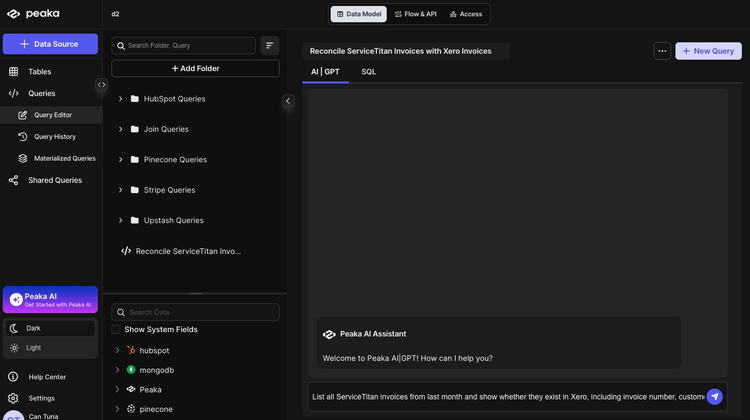
Enter your reconciliation request in natural language. For example:
List all ServiceTitan invoices from last month and show whether they exist in Xero, including invoice number, customer name, invoice total, and payment status.
Step 3: Select Your Data Sources🔗
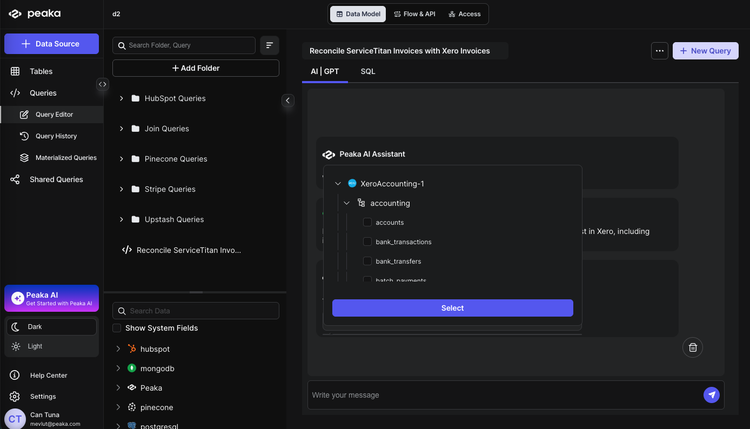
TitanSigma will suggest the relevant tables. For this reconciliation you'll typically use:
ServiceTitan
- Invoices —
your_service_titan_connection > accounting > invoices - Customers —
your_service_titan_connection > crm > customers
Xero Accounting
- Invoices —
your_xero_connection > accounting > invoices - Contacts —
your_xero_connection > accounting > contacts
The logic: match ServiceTitan.InvoiceNumber to Xero.InvoiceNumber, join customers/contacts by name or by a mapped customer/contact ID, then compare invoice totals and paid vs unpaid status.
Step 4: Execute and Analyze🔗
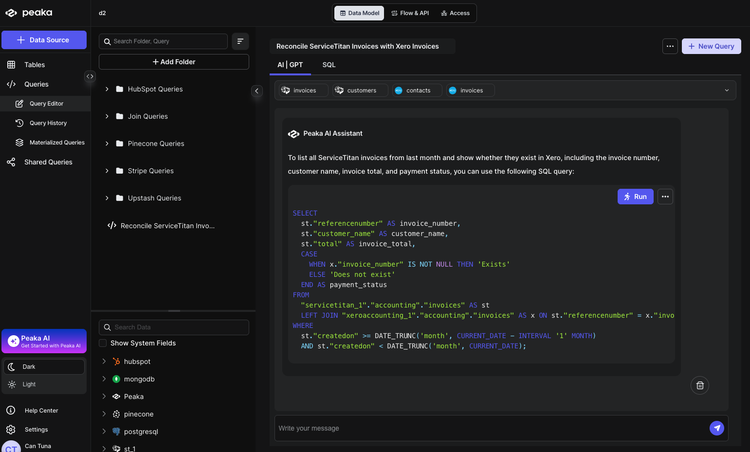
Run the query. TitanSigma generates the SQL and returns a result set showing which ServiceTitan invoices exist in Xero and where they match or differ.
Use the output to quickly spot:
- Invoices missing in Xero — present in ServiceTitan but not in Xero.
- Invoices with mismatched totals — same invoice number but different amounts.
- Status differences — e.g. paid in one system, unpaid in the other.
Conclusion: Close the loop on every invoice🔗
Reconciliation is not a one-time cleanup. It is a habit that keeps your ops reality and your accounting records aligned.
Start simple. Keep one saved view of “invoice exceptions” and clear it before closing. When discrepancies appear, treat them as signals. They usually point to a mapping, workflow, or timing issue you can fix once and prevent from recurring.
TitanSigma helps you rerun the same checks without rebuilding queries or stitching exports, so invoice validation becomes routine instead of a month-end scramble.
Ready to streamline more ServiceTitan workflows? Explore our ServiceTitan reporting guides for more step-by-step playbooks:
-
Track Payments Collected vs Deposited in ServiceTitan & Xero)
-
How to List Invoice Data Across Multiple ServiceTitan Accounts
-
Listing All Jobs for an Employee in ServiceTitan Using TitanSigma
If you are looking for a more comprehensive solution, check out our guide on multi-location ServiceTitan reporting.
Book a quick demo and see how TitanSigma can help simplify ServiceTitan reporting for you and your clients.